


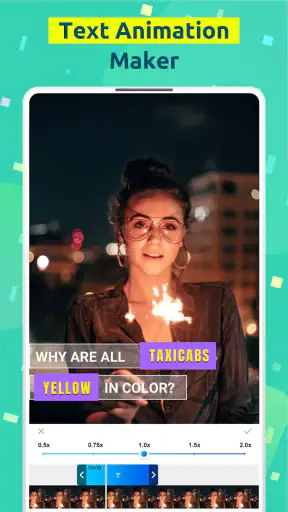
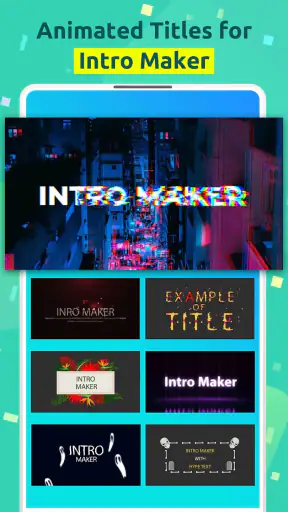
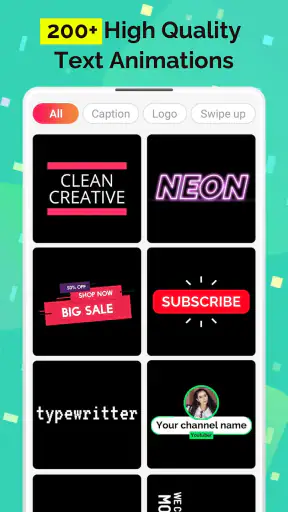
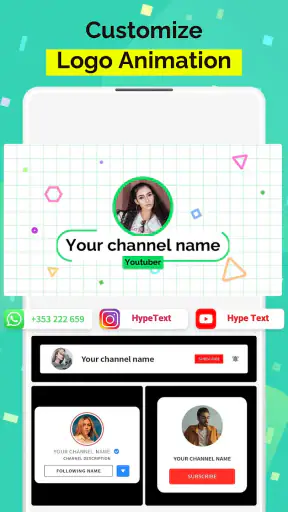
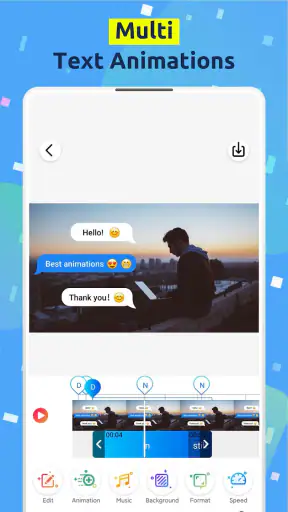
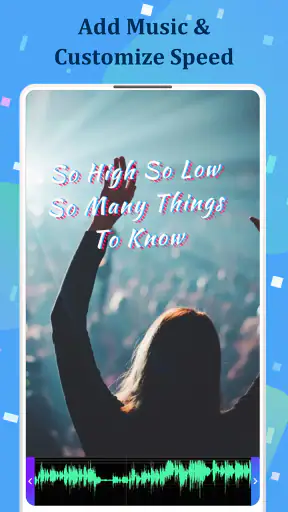
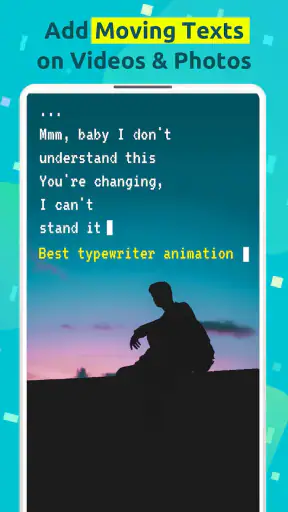
I spent time with Hype Text as a quick way to turn ordinary clips and pictures into short, animated posts. It is an Android app in the video players and editors category, developed by cerdillac, and its focus is narrow in a useful way: adding moving text without asking me to learn a full desktop-style editing suite. That makes it easier to approach than a large timeline editor, especially when the message matters as much as the footage.
The app is free to install, with optional in-app purchases ranging from $1.99 to $9.99 per item. It is rated for Everyone, runs on Android 5.0 and newer, and the current version is 4.7.3. I also noticed why it has attracted attention: it has passed 1 million installs, with an average rating of 4.6 from around 73 thousand ratings and around 2.9 thousand written reviews. Those figures do not automatically make an app perfect, but they suggest that its straightforward text-on-video idea works for a broad audience.
How Hype Text feels during ordinary editing
My first impression is that Hype Text is built for momentum. I can start with a video or picture, add a phrase, choose an animation style, and shape the result without wading through the many panels found in heavyweight editors. That simplicity is its main advantage, but it also defines the limits of the experience. This is not the app I would pick for a complicated multi-layer production. It is the one I would open when I want a caption to feel alive rather than sit motionless over the image.
The speed I perceived depended more on the material I was working with than on the text itself. A short clip with a small amount of animated lettering feels like the natural workload for the app. The editing process remains approachable because the idea is visual: I can judge the wording and movement together instead of guessing how a complex timeline will behave. For a quick social post, that reduces the time between having an idea and seeing a usable draft.
There is an important distinction between editing speed and export speed. The former benefits from the focused design, while the latter can be affected by video length, image detail, the number of animated elements, and the phone being used. I would not promise instant processing for every project. A short, simple composition is where the app makes the strongest impression; a longer or more elaborate one is where patience becomes part of the workflow.
One practical habit helped me keep the process smooth: I wrote the final sentence before experimenting with animation. Animated text can be tempting to adjust endlessly, but a concise line is easier to read and usually looks more intentional. Hype Text is particularly effective when the wording is brief enough to remain visible while the movement happens. If I tried to make it carry a full paragraph, the visual effect became less helpful.
Where the focused design saves time
Compared with a conventional video editor, the app removes much of the setup that can slow down a casual project. I do not need to build a detailed sequence just to make an announcement, add a greeting, or give a still photograph some movement. That makes it a good fit for someone who finds traditional editing interfaces intimidating or simply does not want to spend an evening learning them.
I found the strongest everyday use case in a small personal update. Imagine recording a short clip of a meal, a walk, or a handmade project and wanting to add a phrase that appears with some energy. Instead of opening a broad editor with tools I will not use, I can concentrate on the message, its placement, and the rhythm of its appearance. For this kind of task, the narrow purpose feels like a benefit rather than a missing feature.
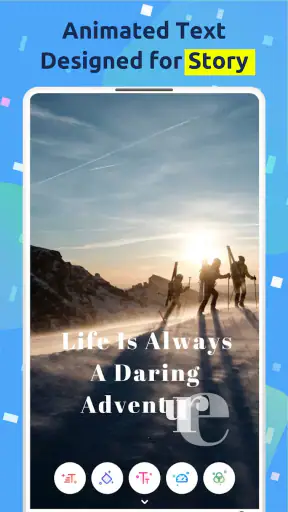
It is also useful for turning a single photo into something more suitable for a story-style post. The photograph remains the main visual, while animated wording supplies context or a reaction. That workflow is more interesting than simply placing a static label on the image, and it does not require me to create a full slideshow. I would still preview the result several times, because moving text can look attractive while being difficult to read when the background is busy.
The most useful rule is to treat readability as the priority, not animation as decoration. I kept the text away from faces and important objects, used short phrases, and checked the opening and closing moments before considering the project finished. That small discipline makes a bigger difference than repeatedly changing effects.
What happens when a project becomes heavier
The app feels most comfortable with short, focused edits. Once I combine a longer source video with several lines of text or repeated animated sections, the project naturally asks more from the phone. Previewing can feel less immediate, and preparing the finished file can take longer than the creative part. This is not a reason to reject the app; it is a reminder that its sweet spot is quick visual communication rather than extended production.
Heavy use also exposes a workflow issue: animated text needs repeated checking. A static caption can be judged in one glance, but movement must be watched from beginning to end. If I add several phrases, I have to make sure they do not compete with one another or appear so quickly that the viewer misses them. The app makes adding text approachable, but it does not remove the editorial work needed to make a busy clip coherent.
For a longer video, I would prepare the source first and trim it before bringing it into Hype Text. That keeps the app focused on the part it handles best. I would also avoid adding every possible text element at once. Building the message in small stages makes it easier to spot a crowded frame and should reduce unnecessary reworking when the final result does not feel balanced.
Another useful trade-off concerns source quality. A detailed image or high-quality video may look better, but it can also make processing more demanding than a modest clip intended for casual sharing. If I am creating something for a quick message, I would rather use a clean, manageable source than overload the project with detail that will be hard to notice on a small screen.
Stability, interruptions, and recovering a draft
In normal use, I found the focused workflow reassuring because there are fewer stages to lose track of than in a full editor. I can think about one job at a time: the source, the wording, the animation, then the finished result. That does not make every editing session immune to problems, and I would still avoid treating an unfinished project as safe until I have completed the output and checked it.
My advice is simple when working on something important: keep the original video or picture untouched, and do not begin by editing the only copy. If the phone becomes busy or the app needs to be reopened, the source remains available for another attempt. This is especially sensible for a longer project, where repeating the process would be more frustrating than recreating a short caption.
Recovery is also easier when I make deliberate checkpoints. I preview a small section after choosing the wording, then review the entire piece before finishing. If something looks wrong, I correct it immediately rather than adding more effects on top. That approach is not glamorous, but it limits the amount of work I might need to repeat after an interruption.
I would be cautious about editing while the phone is already under pressure from other demanding apps. Closing unnecessary apps, keeping enough free working space, and allowing the device to finish one task before starting another are sensible habits for any mobile editor. Hype Text benefits from that care because its appeal is speed; a crowded phone can make even a simple project feel slower than it should.
Older phones and practical device limits
The Android requirement begins at version 5.0, which gives the app a broad compatibility range. That does not mean every compatible phone will deliver the same experience. A newer device is likely to feel more comfortable with longer clips and more demanding compositions, while an older phone may be better suited to a short video or a still image with a modest amount of animated text.
I would recommend starting with a small test project on an older or entry-level phone. Use one source, one short message, and a simple animation, then check how comfortably the preview and final processing behave. This tells me more about the practical fit of the app on that specific device than the operating-system requirement alone. It also avoids committing a large project before I know how the phone handles it.
Screen size matters as well. On a compact display, text that looks attractive during editing may become too small once the image is viewed normally. I prefer to judge the finished composition at the size a recipient is likely to see, not only while zoomed into the editing screen. This is one reason short wording is so important: it leaves room for readable lettering without covering the entire image.
Storage is another consideration for video work. Even a simple project involves the original media and a finished copy, so I would leave comfortable room before starting. If storage is tight, the app is not necessarily the problem, but the overall editing experience becomes more fragile. A failed or interrupted finishing step is especially inconvenient when the source is large and there is nowhere else for the result to go.
Who will enjoy it, and who should choose something else
I think Hype Text suits casual creators, students, families, small sellers, and anyone who wants animated captions without becoming a video-editing specialist. It is also a sensible companion for people who already take photos and short clips but rarely publish them because adding context feels like too much work. The app gives those simple materials a more expressive presentation while keeping the central task understandable.
I would be less likely to recommend it as the main tool for a filmmaker, a creator managing a long-form channel, or anyone who needs detailed control over multiple tracks, precise audio editing, advanced color work, or complex timing. A broader editor is the better choice when text is only one part of a carefully constructed production. Hype Text can contribute a title or message in a larger workflow, but it should not be mistaken for a complete replacement for a full editing suite.
It may also be the wrong choice if I want completely restrained design. The app’s appeal comes from animated lettering, so someone who prefers quiet, minimal captions may find a standard editor or a photo tool more suitable. Likewise, if I need exact brand typography and highly controlled layout across many assets, I would want a tool designed around precision and repeatable templates rather than quick experimentation.
The free entry point makes it easy to try before deciding whether the workflow fits. The optional purchases are worth considering only after I know I will use the app regularly. I would not pay simply because a project looks unfinished; first I would check whether the issue is the wording, contrast, timing, or placement. Often, improving those choices produces a bigger gain than adding another visual treatment.
Small techniques that improve the finished result
My first technique is to create a visual pause before the most important words. If every phrase moves with equal intensity, the viewer has no clear emphasis. I prefer a short opening, the key message, and then a clean ending. This gives the animation a readable rhythm and makes the text feel designed rather than randomly active.
My second technique is to test the caption against the most complicated part of the background. A text style can look excellent over an empty wall and disappear over patterned clothing, foliage, or a bright street scene. I check the moment where the background is busiest, then adjust the wording or position so the message survives the worst case, not just the easiest frame.
My third technique is to make a duplicate plan before experimenting. I keep the original media and, when possible, save a clean version before trying a more dramatic treatment. That lets me compare a lively result with a restrained one instead of relying on memory. It is particularly helpful when creating several versions for different audiences, because the same wording may need a different placement on a photo than on a video.
A fourth insight is that Hype Text works well as a finishing tool after I have already chosen the story. I do not use it to discover what a long video is about. I decide the point first, select the strongest moment, and then use animated text to make that point clearer. This keeps the app from becoming a distraction and makes its focused feature set feel intentional.
My performance verdict after regular use
Hype Text delivers its best experience when I ask it to do one thing well: make a short visual message more noticeable through animated lettering. Its perceived speed is strongest on brief projects, its resource demands become more apparent with longer or busier material, and its reliability benefits from ordinary mobile-editing precautions such as keeping the source safe and checking the result before moving on.
I appreciate that cerdillac has kept the concept approachable. The app does not force a casual user to understand a large collection of editing controls before producing something shareable. At the same time, that simplicity means I have to accept fewer options than I would find in a comprehensive editor. The choice is not really between a good app and a bad one; it is between a focused caption tool and a broader production environment.
With a Everyone content rating, free installation, support for Android 5.0 and newer, and a current version of 4.7.3, it is easy for many people to test the workflow on their own device. I would start with a short clip or a single photograph, use a concise sentence, and judge both the editing response and the finished readability. That trial tells me quickly whether the app matches my habits.
My recommendation is positive for quick posts, greetings, announcements, and expressive photo captions. I would skip it as my only editor for serious long-form work or projects demanding exact production control. For the right job, though, Hype Text is a practical way to add movement without turning a simple idea into a complicated editing session. It earns its place when speed, clarity, and a small creative lift matter more than an enormous toolset.


